Hi there,
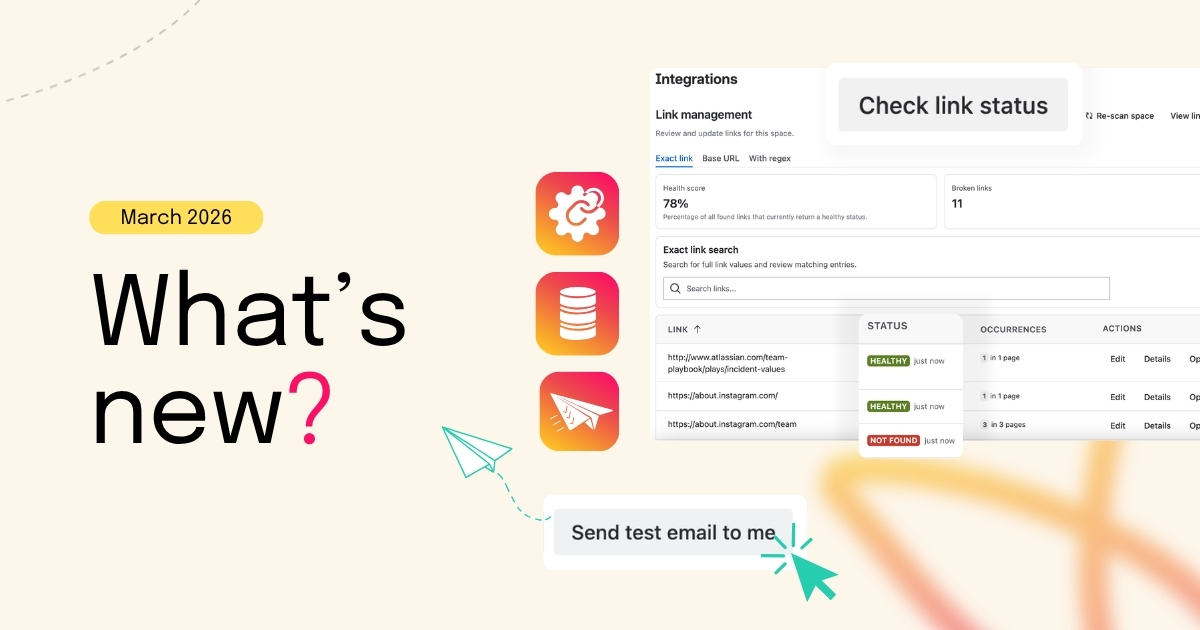
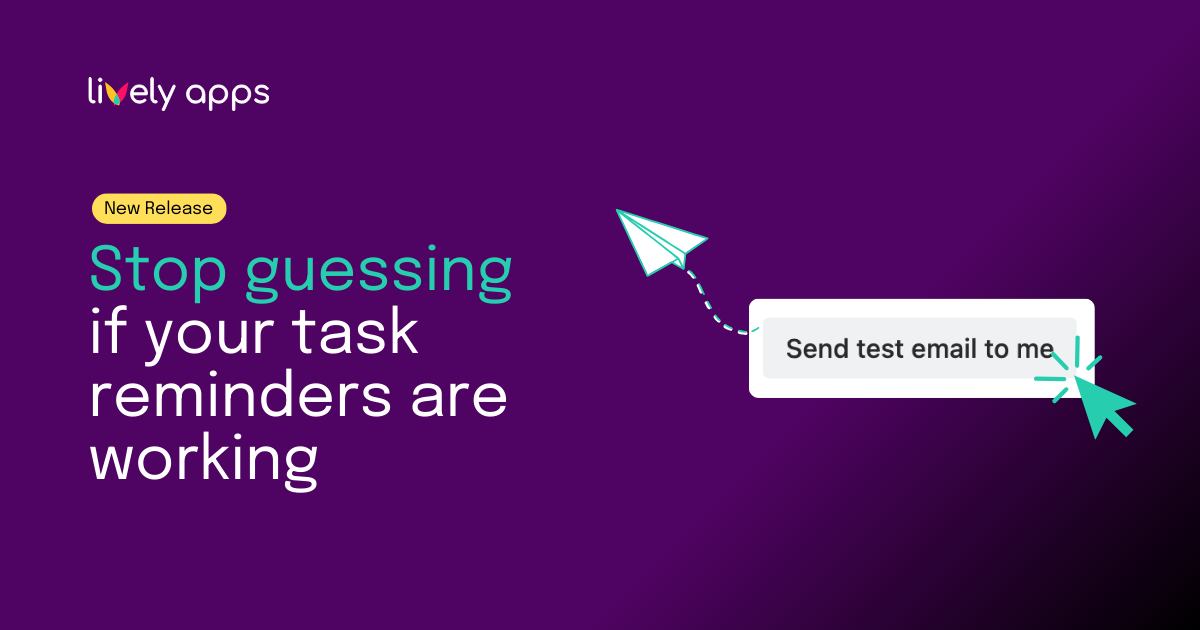
Task Reminder admins can now send a test reminder in one click. No more waiting for the next scheduled run to see if your templates and delivery are working as expected.
What is the test email function?
Task Reminder sends scheduled reminders to keep your team on top of open tasks. Until now, you configured your template, hit save, and hoped everything worked when the cron ran. The only way to verify was to wait.
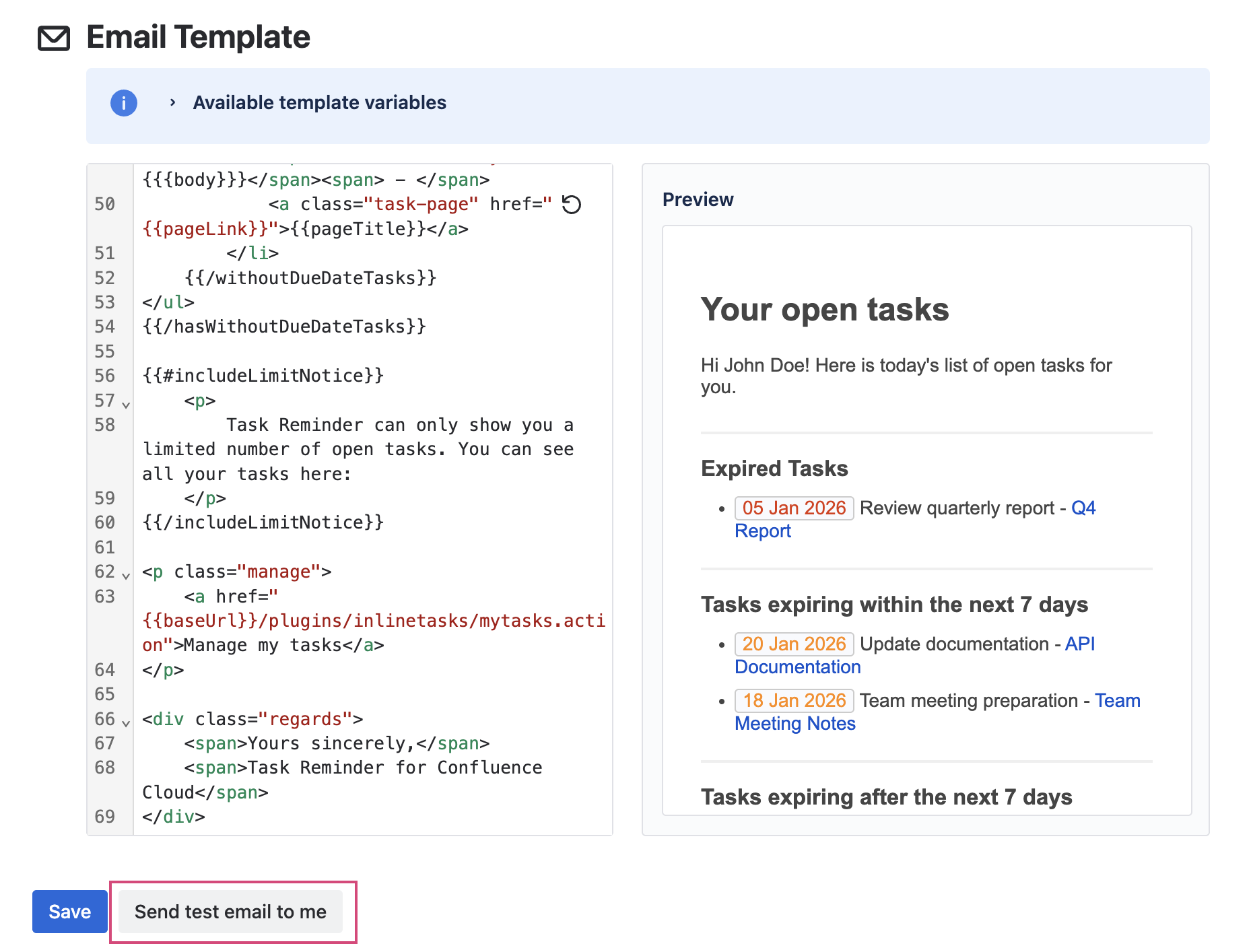
The Test Email button changes that. Admins can send a test reminder email directly from the email settings page. The test uses your currently configured template and real task data from your account, so you see exactly what your recipients will get. No guesswork, no waiting.
Why it matters
Email delivery can be finicky. New mail servers, filters, SPF changes, or template edits can all affect whether reminders land in inboxes or spam folders. Before this feature, the first sign something was wrong might be "I never got my reminder."
With Send Test Email, you can:
- Verify delivery - Confirm emails reach your inbox right after setup changes.
- Check templates - See how placeholders, formatting, and styling render with real data.
- Troubleshoot faster - If something breaks, test immediately instead of waiting for the next run.
- Onboard with confidence - New admins can validate their configuration before going live.
How to use it
- Go to Confluence Administration → Task Reminder → Email Settings.
- Click the Send Test Email button.
- Check your inbox for a test reminder email with real task data from your account.
- Confirm the email uses your currently configured template and formatting.
That's it. If the test email looks good and lands in your inbox, your recipients should get the same experience when the real reminders run.
Where to go from here
- New to Task Reminder? Set up your first schedule and recipients in the admin, then use Send Test Email to confirm everything works before launch.
- Just changed your template? Hit Send Test Email to preview how it looks with live data.

.png)